Creating your first invoice

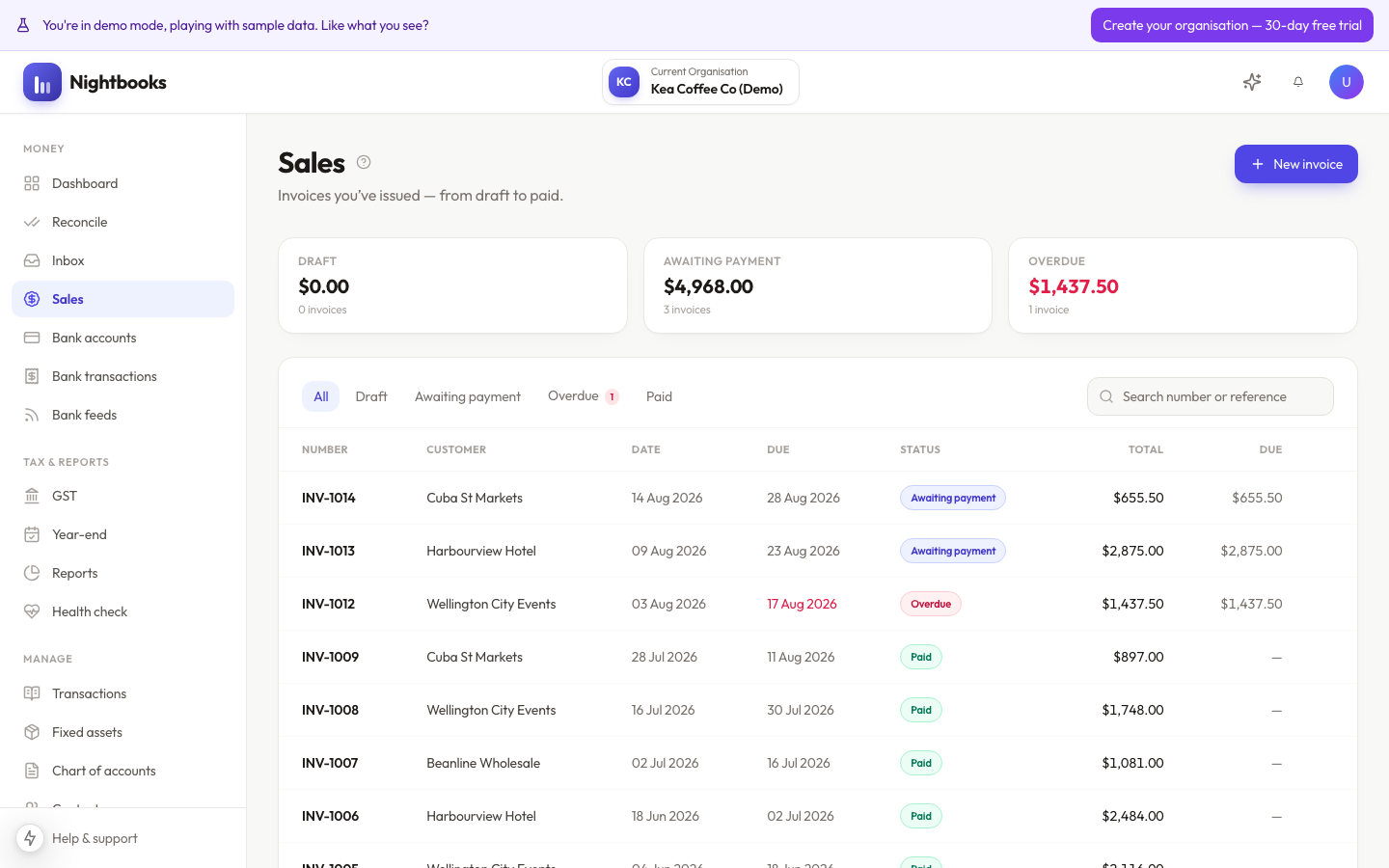
Create invoices from Sales → New invoice. An invoice starts as a draft — nothing hits your books until you approve it, so you can experiment freely.
The essentials
Contact — pick an existing customer or type a new name to create one on the spot.
Line items — description, quantity, price, the account each line is earned against, and the GST rate per line.
Dates — issue date and due date; the due date drives overdue tracking and defaults from your organisation settings.
Amounts are tax exclusive or inclusive — switchable per invoice, with the default set in your organisation settings.
Draft vs approved
Drafts can be edited or deleted freely. Approving is the moment of record: it assigns the sequential invoice number, posts the invoice to your ledger as receivable income, and unlocks sending. After approval, fixing a mistake means voiding or editing with the books updated — see Voiding and copying invoices.
GST on invoices
If you are GST registered, invoices are tax invoices: your GST number appears automatically and GST is calculated per line at the rate you choose. Most sales are standard-rated; zero-rated exports and GST-free supplies are selected per line.
Set your default due days and payment details once in Organisation settings and every new invoice starts correct.
Was this article helpful?