Connecting Xero
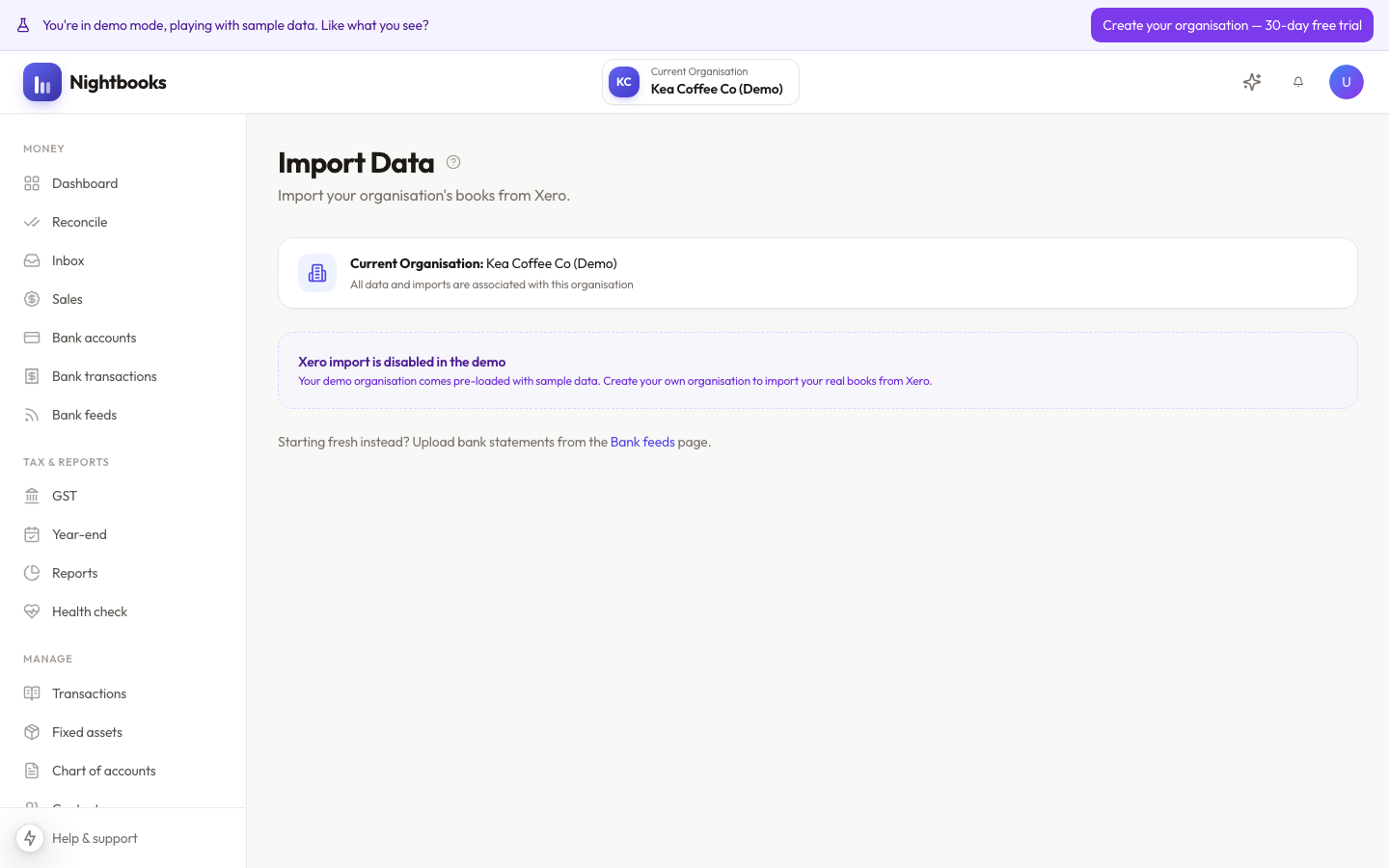

The import starts by connecting your Xero account. From Import data (or during onboarding), choose Connect Xero and sign in — you will pick which Xero organisation to link.
Good to know
The connection is read-only: Nightbooks never writes back to Xero, so your Xero books cannot be affected by anything you do here.
One Nightbooks organisation links to one Xero organisation — for multiple entities, create a Nightbooks organisation per Xero org.
You need sufficient permissions in Xero (adviser or standard access) to authorise the connection.
You can disconnect at any time from the Import data page; imported data stays in Nightbooks.
What happens after connecting
Nightbooks reads your organisation details and offers the import: you choose a cutover date (see Choosing your cutover date), run the import, and then verify the result against Xero’s trial balance (see Verifying the import). The connection can stay in place afterwards to re-sync changes made in Xero while you run in mirror mode.